
ParksCampus connection guide
This learning platform can be accessed on both Parks Canada computers and personal devices. Please note that the initial password setup must be completed on a Parks Canada computer.
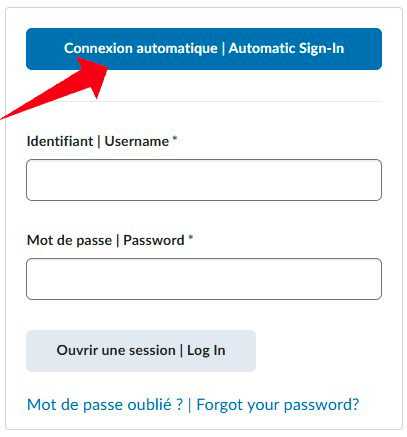
Set up your password
- Go to the ParksCampus login pageand click the blue “Automatic Sign-In" button above the username and password fields.
- Once you have completed this first step, you will receive an email to your Parks Canada email address, with instructions.
- If you haven’t received the account setup email, please submit this ticket: Question or issue related to ParksCampus or email us.
Access off-network
Once you have set up your password, you may log into ParksCampus using your username and password. As a security measure, please note that a free authenticator app (such as Microsoft Authenticator or Google Authenticator) is required to validate the two-step verification.
On your personal or work device, please set up the authenticator app by following this guide: How to install the Microsoft Authenticator app - M365 - Service project.


Connecting with a personal device
Once your account and password are created, you can go to the ParksCampus login page from any device and log in using your username and password.
Set up your language
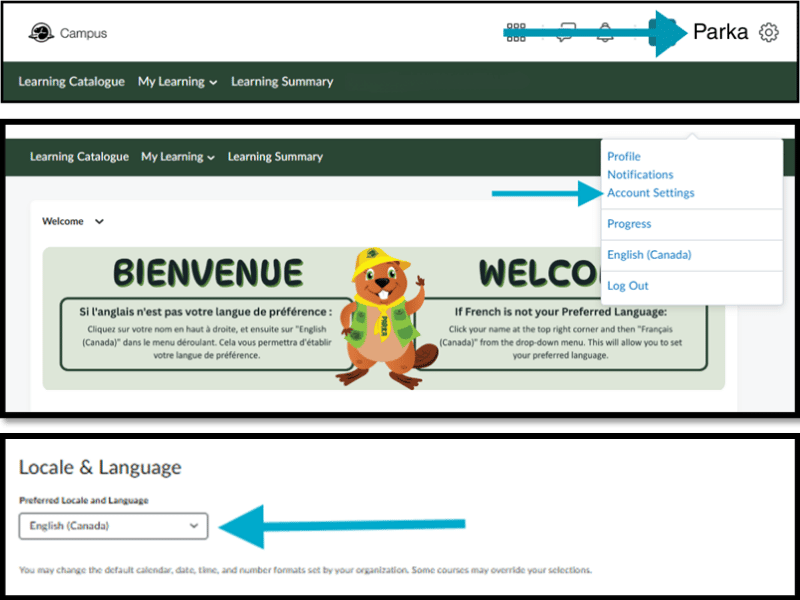
In ParksCampus, on the top right corner click on your name, navigate to Account Settings, then Locale & Language.
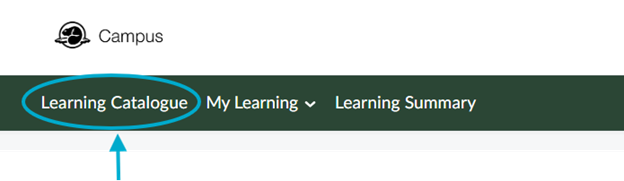
Explore the Catalogue
Visit the ParksCampus Learning Catalogue to register for courses. Explore our Welcome Course to discover what’s currently available, what’s coming soon, and get helpful tips for navigating: Welcome Course
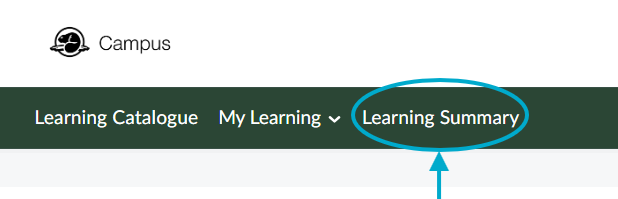
Your learning Summary
Want to see your learning records?
When connected to the network in ParksCampus, you can check your learning summary.
Need support?
If you have any questions, please contact us via JIRA (only available on the Parks Canada network/VPN) or at apprentissage-learning@pc.gc.ca.
- Date modified :